
How to remotely control your university HPC cluster from anywhere using Discord, without spending a dime.
The Problem
If you’re a researcher using High Performance Computing (HPC) clusters, you’ve probably experienced this frustration:
- You’re away from your desk and want to check if your 48-hour training job finished
- You need to submit a quick job but don’t have your laptop
- Your cluster requires multi-factor authentication (Duo/2FA) every single time you log in
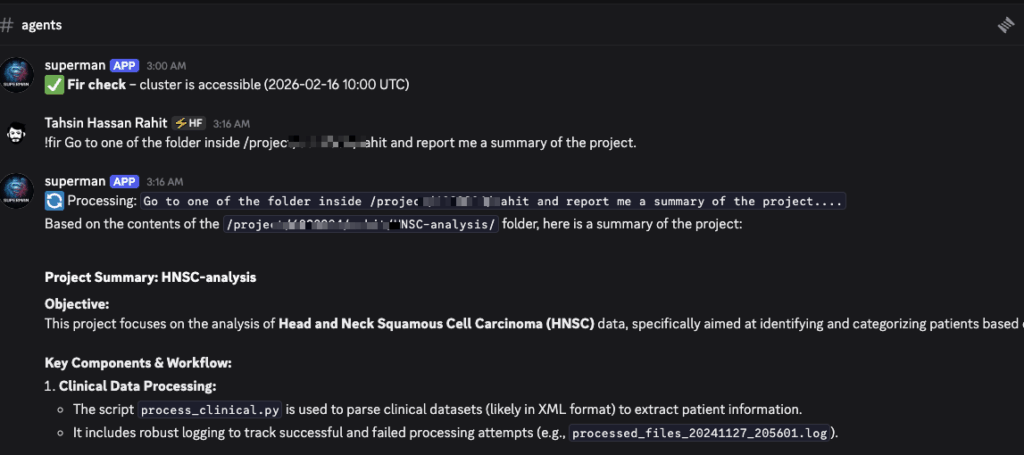
What if you could just send a message from your phone—anywhere, anytime—and have an AI agent handle it for you?
You: "!fir check if my training job is done"
Bot: "Your job finished 2 hours ago! The accuracy reached 94.2%."
That’s what we’ll build in this guide. Zero monthly cost. Zero vendor lock-in. Zero compromises.
What We’re Building
An autonomous AI assistant that:
- Responds to natural language commands via Discord
- Executes tasks on your HPC cluster
- Runs 24/7 without your intervention
- Handles authentication (mostly) automatically
- Monitors cluster access and alerts you when issues arise
- Costs $0/month to operate
Tech Stack:
- Discord: Free messaging interface
- Oracle Cloud VPS: Free forever (4 CPU, 24GB RAM)
- Google Gemini API: Free AI model available through API
- Alliance Canada Fir Cluster: Or any SSH-accessible HPC cluster with MFA
- Python: Discord bot + SSH automation
Architecture Overview
┌─────────────────────────────────────────────────────────────┐
│  You (Discord on phone/laptop)                              │
│  "!fir check my jobs"                                       │
└─────────────────────┬───────────────────────────────────────┘
                      ↓
┌─────────────────────────────────────────────────────────────┐
│  Discord Bot (on Oracle VPS)                                │
│  - Receives message                                         │
│  - Sends to Gemini AI                                       │
└─────────────────────┬───────────────────────────────────────┘
                      ↓
┌─────────────────────────────────────────────────────────────┐
│  Gemini AI (Google, free)                                   │
│  - Interprets: "check my jobs" → "squeue -u username"       │
│  - Returns bash command                                     │
└─────────────────────┬───────────────────────────────────────┘
                      ↓
┌─────────────────────────────────────────────────────────────┐
│  Reverse SSH Tunnel                                         │
│  VPS ←─────── HPC Cluster                                   │
│  Port 2222    (initiated from inside cluster)              │
└─────────────────────┬───────────────────────────────────────┘
                      ↓
┌─────────────────────────────────────────────────────────────┐
│  HPC Cluster (Fir)                                          │
│  - Bot SSHs in via tunnel                                   │
│  - Executes: squeue -u username                             │
│  - Returns output                                           │
└─────────────────────┬───────────────────────────────────────┘
                      ↓
┌─────────────────────────────────────────────────────────────┐
│  Results back to Discord                                    │
│  "You have 2 jobs running: job_12345 (87% done)..."        │
└─────────────────────────────────────────────────────────────┘
Key Strategy: The Reverse Tunnel
Traditional approach: VPS connects to cluster (requires cluster to allow incoming SSH)
Our approach: Cluster connects to VPS (works even with strict firewall rules)
This is why the tunnel is “reverse”—initiated from inside the cluster, bypassing the restriction.
Part 1: Setting Up the Always-On VPS (Oracle Cloud)
Why Oracle Cloud?
Most cloud providers’ free tiers expire after 12 months. Oracle Cloud’s “Always Free” tier is actually permanent:
- 4 ARM CPUs (Ampere A1)
- 24GB RAM
- 200GB storage
- Forever free (as long as you use it monthly)
This is more than enough to run our Discord bot 24/7.
Step 1.1: Create Oracle Cloud Account
- Go to https://www.oracle.com/cloud/free/
- Sign up (requires credit card but won’t charge)
- I used Toronto region (any region with Ampere availability will work)
Step 1.2: Launch the Instance
Configuration:
- Shape:
VM.Standard.A1.Flex - OCPU: 4
- Memory: 24GB
- Image: Ubuntu 22.04
- CRITICAL: Paste your PC’s SSH public key (
~/.ssh/id_ed25519.puborid_rsa.pub)
If provisioning fails: Oracle’s free tier sometimes has capacity issues. Just retry every 15-30 minutes in the same availability domain. Usually provisions within a few hours. (I used a automated script. Took about 20hours to get the VPS)
Step 1.3: Note Your VPS IP
Once running, note the public IP address (e.g., 40.***.***.100). We’ll call this VPS “otterland” throughout.
Step 1.4: SSH Alias (Local Machine)
Add to your ~/.ssh/config:
Host otterland
    HostName 40.***.***.100
    User ubuntu
    IdentityFile ~/.ssh/id_ed25519
Test: ssh otterland should connect.
Part 2: Setting Up Passwordless SSH to Your Cluster
The bot needs to SSH into your cluster without human intervention. But how do we handle MFA?
The Solution: Two-Layer Authentication
- SSH Key: Passwordless authentication (one-time setup)
- ControlMaster: Reuses one authenticated session for 30 days
- You: Approve Duo MFA once per month
Step 2.1: Generate a No-Passphrase SSH Key
On your local machine:
ssh-keygen -t ed25519 -C "cluster-automation" -f ~/.ssh/id_cluster_automation
# Press Enter when asked for passphrase (leave it empty)
Step 2.2: Copy Key to Cluster
ssh-copy-id -i ~/.ssh/id_cluster_automation.pub username@yourcluster.edu
Enter your password and approve Duo one last time.
Step 2.3: Configure ControlMaster
Edit ~/.ssh/config on your local machine:
Host mycluster
    HostName yourcluster.edu
    User your_username
    IdentityFile ~/.ssh/id_cluster_automation
    ControlMaster auto
    ControlPath ~/.ssh/cm_sockets/%r@%h:%p
    ControlPersist 720h  # 30 days!
    ServerAliveInterval 60
    ServerAliveCountMax 10
Create the socket directory:
mkdir -p ~/.ssh/cm_sockets
Step 2.4: Test It
# First connection - will ask for Duo
ssh mycluster "hostname"

# Second connection - silent!
ssh mycluster "hostname"
If the second connection doesn’t ask for Duo, ControlMaster is working. This is the magic that makes automation possible.
Part 3: The Reverse Tunnel (Bypassing Institutional Firewalls)
Here’s the clever part: your cluster can’t accept incoming SSH connections (firewall), but it CAN initiate outgoing connections.
Step 3.1: Copy Your Key to the VPS
From your local machine:
scp ~/.ssh/id_cluster_automation* otterland:~/.ssh/
Step 3.2: Set Up SSH Config on VPS
SSH into otterland and create ~/.ssh/config:
Host mycluster
    HostName localhost
    Port 2222
    User your_username
    IdentityFile ~/.ssh/id_cluster_automation
    ControlMaster auto
    ControlPath ~/.ssh/cm_sockets/%r@%h:%p
    ControlPersist 720h
    ServerAliveInterval 60
    ServerAliveCountMax 10
mkdir -p ~/.ssh/cm_sockets
Step 3.3: Start the Reverse Tunnel FROM the Cluster
SSH into your cluster:
ssh mycluster # From your local machine, approve Duo
Once on the cluster, start the tunnel in tmux:
# Create persistent session
tmux new -s tunnel

# Start reverse tunnel
ssh -N -R 2222:localhost:22 \
    -o ServerAliveInterval=60 \
    -o ServerAliveCountMax=3 \
    -o ExitOnForwardFailure=yes \
    ubuntu@40.233.101.100

# Detach from tmux: Ctrl+b then d
What this does:
- Opens port 2222 on otterland
- Forwards it to port 22 on your cluster
- Keeps the connection alive with heartbeats
- Runs in background via tmux
Step 3.4: Verify the Tunnel
From otterland:
ssh otterland
ssh -p 2222 localhost "hostname"
Should return your cluster’s hostname without asking for Duo.
🎉 Congratulations! Your VPS can now reach your cluster anytime, silently.
Part 4: Creating the Discord Bot
Step 4.1: Create Discord Bot
- Go to https://discord.com/developers/applications
- Click New Application → name it (e.g., “HPC Agent”)
- Go to Bot tab → Add Bot
- Under Privileged Gateway Intents → enable Message Content Intent
- Copy the bot token (keep secret!)
Step 4.2: Invite Bot to Your Server
- Go to OAuth2 → URL Generator
- Check bot scope
- Check permissions:
- View Channels
- Send Messages
- Read Message History
- Copy the generated URL and open in browser
- Add bot to your server
Step 4.3: Get Gemini API Key
- Go to https://aistudio.google.com/apikey
- Click Create API key
- Copy the key
Part 5: Installing the Bot on VPS
Step 5.1: Install Dependencies
SSH into otterland:
ssh otterland

# Install uv (modern Python package manager)
curl -LsSf https://astral.sh/uv/install.sh | sh
source $HOME/.cargo/env
Step 5.2: Create Project Structure
mkdir -p ~/projects/discord_agent
cd ~/projects/discord_agent

# Initialize with uv
uv init
uv add discord.py google-generativeai python-dotenv
Step 5.3: Create Environment File
nano .env
DISCORD_TOKEN=your_discord_bot_token_here
GEMINI_API_KEY=your_gemini_api_key_here
ALERT_CHANNEL_ID=your_discord_channel_id  # Right-click channel → Copy ID
Step 5.4: Create the Bot Script
nano bot.py
import discord
import google.generativeai as genai
import subprocess
import os
from dotenv import load_dotenv

load_dotenv()

DISCORD_TOKEN = os.getenv("DISCORD_TOKEN")
GEMINI_API_KEY = os.getenv("GEMINI_API_KEY")

genai.configure(api_key=GEMINI_API_KEY)

intents = discord.Intents.default()
intents.message_content = True
client = discord.Client(intents=intents)

def run_on_cluster(command):
    """Execute command on cluster via SSH"""
    try:
        result = subprocess.run(
            ["ssh", "mycluster", command],
            capture_output=True,
            text=True,
            timeout=60
        )
        return result.stdout + result.stderr
    except Exception as e:
        return f"Error: {str(e)}"

# Define the tool for Gemini
tools = [
    genai.protos.Tool(
        function_declarations=[
            genai.protos.FunctionDeclaration(
                name="run_cluster_command",
                description="Execute a bash command on the HPC cluster",
                parameters=genai.protos.Schema(
                    type=genai.protos.Type.OBJECT,
                    properties={
                        "command": genai.protos.Schema(
                            type=genai.protos.Type.STRING,
                            description="The bash command to execute"
                        )
                    },
                    required=["command"]
                )
            )
        ]
    )
]

model = genai.GenerativeModel(
    model_name="gemini-1.5-flash",
    tools=tools
)

@client.event
async def on_ready():
    print(f'{client.user} is connected to Discord!')

@client.event
async def on_message(message):
    if message.author == client.user:
        return

    if message.content.startswith('!hpc'):
        prompt = message.content[5:].strip()

        await message.channel.send(f"🔄 Processing: {prompt[:100]}...")

        try:
            chat = model.start_chat()

            system_msg = """You are an HPC cluster assistant with SSH access.

When asked to check jobs, submit tasks, or interact with the cluster, use the run_cluster_command tool.

Common tasks:
- Check jobs: squeue -u username
- Submit job: sbatch script.sh
- List files: ls -lh ~/path
- Check output: cat slurm-*.out
- Cancel job: scancel <job_id>"""

            full_prompt = f"{system_msg}\n\nUser: {prompt}"
            response = chat.send_message(full_prompt)

            # Handle function calls
            while response.candidates[0].content.parts:
                part = response.candidates[0].content.parts[0]

                if hasattr(part, 'function_call') and part.function_call.name:
                    function_call = part.function_call
                    command = function_call.args["command"]

                    # Execute on cluster
                    result = run_on_cluster(command)

                    # Send result back to Gemini
                    response = chat.send_message(
                        genai.protos.Content(
                            parts=[
                                genai.protos.Part(
                                    function_response=genai.protos.FunctionResponse(
                                        name="run_cluster_command",
                                        response={"result": result}
                                    )
                                )
                            ]
                        )
                    )
                else:
                    break

            # Get final text response
            text_response = response.text

            # Handle long responses (Discord 2000 char limit)
            if len(text_response) > 2000:
                for i in range(0, len(text_response), 1900):
                    await message.channel.send(text_response[i:i+1900])
            else:
                await message.channel.send(text_response)

        except Exception as e:
            await message.channel.send(f"❌ Error: {str(e)}")

client.run(DISCORD_TOKEN)
Replace mycluster and username with your actual values.
Part 6: Running the Bot as a System Service
Step 6.1: Create systemd Service
sudo nano /etc/systemd/system/hpc-discord-bot.service
[Unit]
Description=HPC Discord Bot
After=network.target

[Service]
Type=simple
User=ubuntu
WorkingDirectory=/home/ubuntu/projects/discord_agent
ExecStart=/home/ubuntu/.local/bin/uv run bot.py
Restart=always
RestartSec=10

[Install]
WantedBy=multi-user.target
Step 6.2: Enable and Start
sudo systemctl enable hpc-discord-bot.service
sudo systemctl start hpc-discord-bot.service
Step 6.3: Verify It’s Running
sudo systemctl status hpc-discord-bot.service
sudo journalctl -u hpc-discord-bot.service -f
Part 7: Testing Your Bot
In Discord, try these commands:
!hpc check my running jobs
!hpc list files in my home directory
!hpc what's the current load on the cluster
!hpc show me the last 10 lines of my latest slurm output
🎉 It should work!
Part 8: Automatic Health Monitoring
Let’s add automatic monitoring that alerts you when the cluster becomes unreachable.
Step 8.1: Create Monitor Script
cd ~/projects/discord_agent
nano monitor.py
import discord
import subprocess
import os
from dotenv import load_dotenv
from datetime import datetime

load_dotenv()

DISCORD_TOKEN = os.getenv("DISCORD_TOKEN")
ALERT_CHANNEL_ID = int(os.getenv("ALERT_CHANNEL_ID", "0"))

def check_cluster_access():
    """Check if cluster is accessible"""
    try:
        result = subprocess.run(
            ["ssh", "-o", "ConnectTimeout=10", "mycluster", "hostname"],
            capture_output=True,
            text=True,
            timeout=15
        )
        return result.returncode == 0, result.stdout + result.stderr
    except Exception as e:
        return False, str(e)

def send_alert(message):
    """Send alert to Discord"""
    if ALERT_CHANNEL_ID == 0:
        print(f"Alert: {message}")
        return

    intents = discord.Intents.default()
    client = discord.Client(intents=intents)

    @client.event
    async def on_ready():
        channel = client.get_channel(ALERT_CHANNEL_ID)
        if channel:
            await channel.send(f"🚨 **Cluster Access Alert** 🚨\n{message}")
        await client.close()

    client.run(DISCORD_TOKEN)

if __name__ == "__main__":
    is_accessible, output = check_cluster_access()

    if is_accessible:
        print(f"[{datetime.now()}] ✅ Cluster is accessible")
    else:
        alert_msg = f"""Cluster is not accessible from the VPS.

**Time:** {datetime.now()}
**Error:** {output}

**To fix:**
1. SSH into cluster: `ssh mycluster`
2. Check tunnel: `tmux attach -t tunnel`
3. If down, restart tunnel in tmux
4. Re-authenticate to reset ControlMaster"""

        print(f"[{datetime.now()}] ❌ Cluster NOT accessible")
        send_alert(alert_msg)
Step 8.2: Create Systemd Timer
Create the service:
sudo nano /etc/systemd/system/cluster-monitor.service
[Unit]
Description=Cluster Access Monitor
After=network.target

[Service]
Type=oneshot
User=ubuntu
WorkingDirectory=/home/ubuntu/projects/discord_agent
ExecStart=/home/ubuntu/.local/bin/uv run monitor.py
Create the timer:
sudo nano /etc/systemd/system/cluster-monitor.timer
[Unit]
Description=Run Cluster Monitor Every Hour

[Timer]
OnCalendar=hourly
Persistent=true

[Install]
WantedBy=timers.target
Enable and start:
sudo systemctl enable cluster-monitor.timer
sudo systemctl start cluster-monitor.timer
Verify:
systemctl list-timers cluster-monitor.timer
Troubleshooting Guide
Bot Not Responding
Check if running:
sudo systemctl status hpc-discord-bot.service
View logs:
sudo journalctl -u hpc-discord-bot.service -n 50
Common issues:
- Gemini API key invalid → regenerate at Google AI Studio
- Discord token expired → regenerate in Discord Developer Portal
- Tunnel down → follow tunnel re-establishment below
“Duo MFA Required” Error
Your ControlMaster socket expired (happens after 30 days or cluster maintenance).
Fix:
From otterland:
# Remove old socket
rm ~/.ssh/cm_sockets/*

# Re-authenticate (approve Duo when prompted)
ssh mycluster "hostname"

# Test - should work silently now
ssh mycluster "hostname"
Tunnel Is Down
Symptoms: Bot can’t reach cluster, monitor sends alerts
Fix from your local machine:
# 1. SSH to cluster
ssh mycluster  # Approve Duo

# 2. Check if tmux session exists
tmux ls

# 3. Attach to session
tmux attach -t tunnel

# 4. If SSH process frozen, kill with Ctrl+C

# 5. Restart tunnel
ssh -N -R 2222:localhost:22 \
    -o ServerAliveInterval=60 \
    -o ServerAliveCountMax=3 \
    ubuntu@40.233.101.100

# 6. Detach: Ctrl+b then d

# 7. Verify from VPS
ssh otterland
ssh -p 2222 localhost "hostname"
Gemini API Rate Limits
Free tier: 60 requests/minute (very generous for personal use)
If you hit limits, wait a minute or upgrade to paid tier ($0.00015/1k tokens = nearly free).
Maintenance Schedule
Monthly (~5 minutes):
- Approve Duo MFA when ControlMaster expires
- Bot will send you alerts when this is needed
After Cluster Maintenance:
- Re-establish tunnel (follow troubleshooting guide)
- Takes 2 minutes
Otherwise:
- Everything runs automatically
- Monitor checks hourly
- Bot auto-restarts on crashes
Security Considerations
Is this secure?
Yes, with caveats:
✅ Pros:
- SSH key authentication (more secure than passwords)
- Tunnel is one-way (cluster → VPS, not exposed to internet)
- No credentials stored in code (all in
.env) - Bot only has your cluster permissions (can’t escalate)
- MFA still required monthly
⚠️ Trade-offs:
- SSH key has no passphrase (required for automation)
- Anyone with VPS access can reach cluster (keep VPS secure)
Best practices:
- Use a dedicated Discord server (don’t add bot to public servers)
- Use
.gitignorefor.envfiles - Rotate API keys periodically
- Monitor bot logs for suspicious activity
Limitations
Free tier limits:
- Gemini: 60 requests/minute (plenty for personal use)
- Oracle VPS: 4 CPUs, 24GB RAM (permanent)
- Discord: No limits for personal bots. 2000 character limits/msg is taken care of in the code but chunking.
If you exceed limits:
- Gemini paid tier: ~$0.15 per 1M tokens (nearly free)
- Oracle Cloud: Can upgrade to paid, but won’t need to
Advanced Customizations
Adding More Commands
Edit bot.py system message to teach Gemini new tasks:
system_msg = """You are an HPC cluster assistant.

Common tasks:
- Check jobs: squeue -u username
- GPU usage: nvidia-smi
- Disk usage: du -sh ~/
- Module list: module list
- Queue info: sinfo
"""
Multiple Clusters
Add more SSH configs to ~/.ssh/config on VPS:
Host cluster1
    HostName localhost
    Port 2222
    User username1
    ...

Host cluster2
    HostName localhost
    Port 2223
    User username2
    ...
Set up separate tunnels on each cluster forwarding to different ports.
WhatsApp/Telegram Instead of Discord
Replace Discord client with Twilio (WhatsApp) or python-telegram-bot. Same architecture, different frontend.
File Upload/Download
Add bot commands to SCP files:
def download_from_cluster(remote_path, local_path):
    subprocess.run(["scp", f"mycluster:{remote_path}", local_path])
    return local_path

# In bot: send file to Discord
await message.channel.send(file=discord.File(local_path))
Real-World Usage Examples
Example 1: Job Monitoring
You: !hpc are my jobs still running?

Bot: You have 2 jobs running:
- job_456789: "protein_folding" - 87% complete (node gpu01)
- job_456790: "dataset_prep" - 23% complete (node cpu12)

Both look healthy!
Example 2: Quick File Check
You: !hpc show me the last 20 lines of my latest output

Bot: [Shows tail of slurm-456789.out]
Training epoch 47/50: loss=0.023, acc=0.942
Training epoch 48/50: loss=0.021, acc=0.948
...
Example 3: Emergency Job Cancellation
You: !hpc cancel all my jobs

Bot: Cancelled 2 jobs:
- Cancelled job 456789
- Cancelled job 456790

All jobs stopped.
Example 4: Checking Before Submission
You: !hpc what's the queue wait time?

Bot: Current queue status:
- GPU nodes: 3 pending jobs, ~45 min wait
- CPU nodes: 12 pending jobs, ~2 hour wait

GPU queue is relatively free!
Community Contributions Welcome
This setup works for Alliance Canada’s Fir cluster, but the architecture is universal. If you adapt this for other clusters (XSEDE, NERSC, AWS ParallelCluster, etc.), please share!
Potential improvements:
- Support for SLURM arrays
- Cost tracking integration
- Jupyter notebook launching
- Multi-user support (one bot, many users)
- Web dashboard alongside Discord
GitHub repo (coming soon): Full code, setup scripts, and contributions welcome.
Conclusion
You now have a free, autonomous AI assistant that controls your HPC cluster via natural language from anywhere. No laptop required. No complex VPN setup. No monthly fees.
Questions? Issues? Drop them in the comments or reach out on Discord. I’m happy to help troubleshoot!
Found this useful? Share it with your lab mates! Every researcher fighting with SSH sessions and MFA prompts deserves better.
Written by a researcher tired of approving Duo notifications at 2 AM. Built with coffee, excitement, and Claude’s help.
Last updated: February 2026